
VgScript for Unreal Engine
Import your .vgs scripts into Unreal Engine and play them as subtitles, choices, conditions, facts and game actions, with per-language subtitle tables and CSV translation.
The VgScript plugin for Unreal Engine plays the scenes you write in VgScript. Talks become subtitles, decisions become choices, conditions read the game's state, and actions run your Blueprint or C++ code. The plugin ships with a showcase level and the short example story used throughout this page.
This page covers the Unreal side. For the language itself (tags, sublines, flow arrows, decisions) see the VgScript documentation.
The one rule to remember: the game plays what you last imported. After editing a script, click Extract Data in Unreal. It runs the
vgstool that comes with the plugin to number new entries and update the.vgs.metasidecars, then imports them.
Beta. The plugin is tested on Unreal Engine 5.8. Class names, settings and data formats can still change between releases; the plugin's README lists migration notes for each change.
What you need
- Unreal Engine 5.8 and the VgScript plugin, installed as in Install.
- A text editor. The plugin includes
vgs, the tool that numbers entries and writes the.vgs.metafiles Unreal imports, and runs it for you when you import. - Recommended: the VgScript extension for your editor, for highlighting, live checks, automatic numbering and the travel view: JetBrains IDEs (Rider, IntelliJ IDEA, WebStorm…) or VS Code. The extensions are separate from the Unreal plugin and free for now.
| Part | What it contains |
|---|---|
VgScript module (Runtime) | Playback: the actions subsystem, the dialogue base classes, built-in actions and conditions, facts and localization. It depends only on engine modules: Core, CoreUObject, Engine and DeveloperSettings (plus AssetRegistry internally). |
VgScriptEditor module (Editor) | The import tool, the entry picker shown in the Details panel, and the VgScript automation tests. |
Content/ | The import tool widget EUW_VgScript and the showcase in Showcase/. |
Scripts/vgscript-example/ | The showcase's scripts: Scenes.txt, S1_Room.vgs, S2_End.vgs and their sidecars. |
Source/ThirdParty/vgs/ | The vgs command-line tool for Windows, which the import tool runs. See The vgs command-line tool. |
Install
- From Fab: install the plugin to your engine, enable VgScript in Edit → Plugins, and restart the editor.
- Into a project: copy the plugin folder into your project's
Plugins/folder and rebuild. - For C++: add
"VgScript"to your module'sPublicDependencyModuleNames. Headers live underVgScript/, for example#include "VgScript/Actions/Base/VgScriptActionBase.h".
Quick start: play the showcase
- Enable VgScript in Edit → Plugins and restart the editor.
- In the Content Browser, open Settings and turn on Show Plugin Content.
- Open the map
L_VgScriptShowcasein the plugin'sShowcase/Mapsfolder (/VgScript/Showcase/Maps). - Press Play. Vee and Gee arrive early in a room with a laptop. Click an option when Gee has to answer; the HUD switches the language between English, Spanish and Catalan, lists the facts set so far and restarts the story.
- Open
Scripts/vgscript-example/S1_Room.vgsin the plugin folder to read along. Every comment in it explains the feature the next lines use.
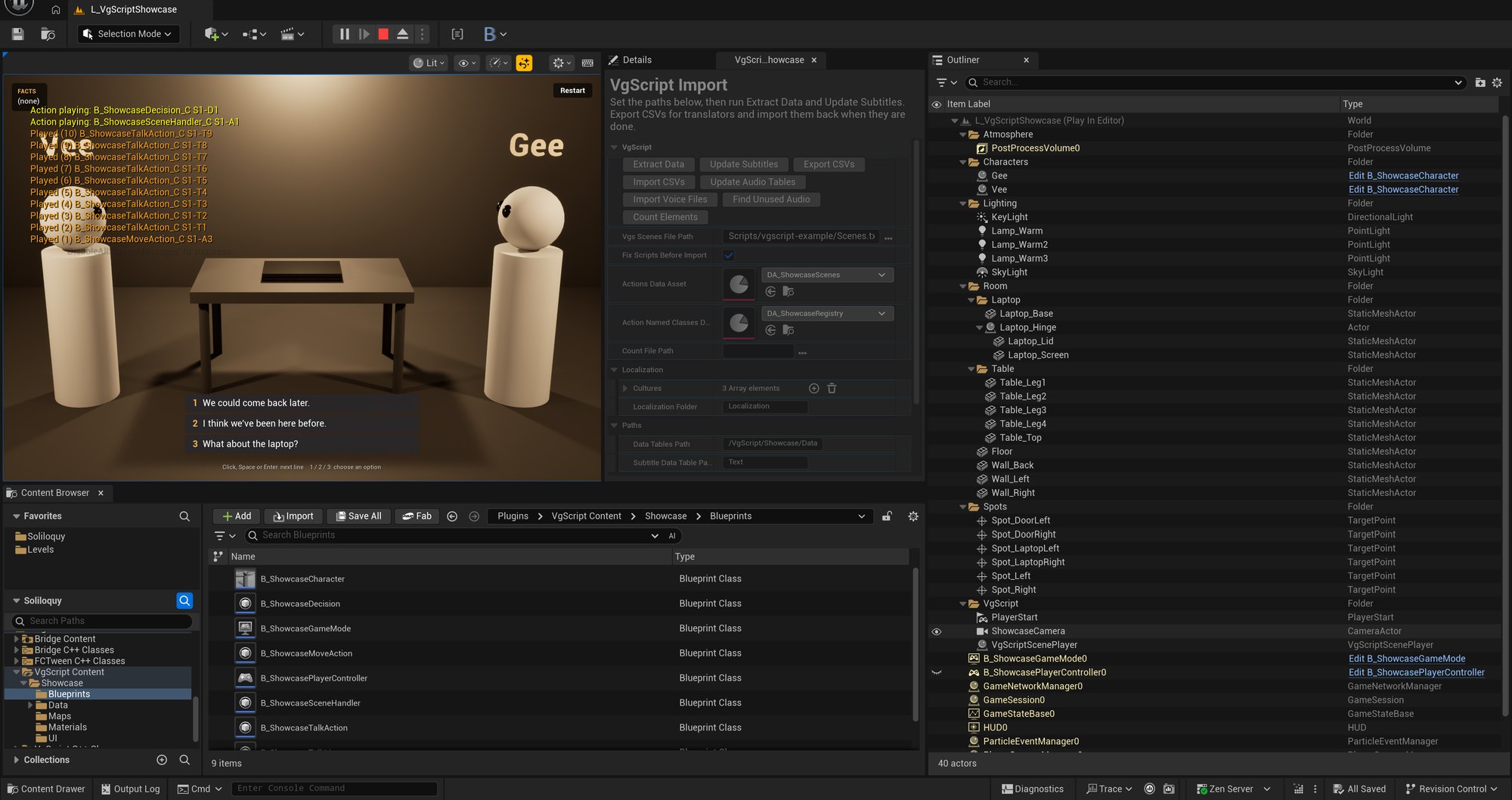
The showcase is already imported, so nothing needs to be built. To change its story, see Editing the showcase scripts.
Your first project
1. Write the scripts
Create a folder for your narrative, for example <Project>/Narrative/, with a Scenes.txt and one .vgs file per scene. Copying Scripts/vgscript-example is the quickest start. Keep it outside Content/: Unreal reads the files from disk, not as assets.
// Scenes in play order.
S1_Intro.vgs
S2_Kitchen.vgs
The importer reads Scenes.txt like the vgs tools do: each line names a scene by path (acts/S1_Intro.vgs), file name or name without extension ([1] /Intro), matched case-insensitively against the .vgs files under the Scenes.txt folder. [n] prefixes and // comments are allowed.
Write your scenes. With an IDE extension, right-click the folder and choose VgScript → Fix + Reconcile All to number new entries as you go; otherwise the import does it. If a scene jumps to another one, write the jump as ->(S2-A1) and run Resolve Cross-Script Links (or vgs resolve-links .): it replaces the code with the destination's stable hash, so renumbering scene 2 never breaks the jump. The importer turns those hashes back into scene keys.
2. Create the two data assets
In the Content Browser choose Add → Miscellaneous → Data Asset twice:
- a
VgScriptScenesDataAsset, for exampleDA_Scenes, which receives the imported scenes; - a
VgScriptActionRegistry, for exampleDA_VgScriptRegistry, which names the classes that present dialogue and run your own actions.
3. Make the dialogue classes
Talks and decisions need three small Blueprints that show subtitles and choices: a talk line, a talk and a decision. Presenting dialogue builds them step by step. To start faster, duplicate the showcase's B_ShowcaseTalkLine, B_ShowcaseTalkAction and B_ShowcaseDecision, with the widgets they use, into your project.
Then open the registry and set Talk Action Class to your talk Blueprint and Decision Action Class to your decision Blueprint. Without them, talks and decisions do not play.
4. Import
Open Tools → VgScript, or click the VgScript button on the level editor toolbar. Fill in the settings:
| Setting | What to enter |
|---|---|
| Vgs Scenes File Path | Your Scenes.txt. Absolute, or relative: a relative path is tried against the project folder first, then the plugin folder. |
| Fix Scripts Before Import | On by default. Extract Data first runs vgs fix-all on the scenes, like Fix + Reconcile All in the IDE extensions: it numbers new entries, fills decision text and rewrites each .vgs.meta. It edits the .vgs files, so save them in your editor first. Turn it off to import the sidecars as they are. |
| Actions Data Asset | The scenes asset to fill. |
| Action Named Classes Data | The registry. Optional for importing: without it only the built-in actions and conditions resolve. |
| Data Tables Path | Content folder for the subtitle tables. A value starting with / is a full path such as /Game/Narrative/Data/DataTables; anything else is relative to /Game. Default: Narrative/Data/DataTables. |
| Subtitle Data Table Path | Subfolder of the tables path that holds one table per language. Default: Text. |
| Cultures | Languages to keep tables for, such as en, es, ca. Empty uses the project's localized cultures, then en. |
| Localization Folder | Folder of the translation CSVs: absolute, or relative to the Scenes.txt folder. Default: Localization. |
| Count File Path | Text file that Count Elements writes, resolved like the scenes path. Empty writes Count.txt next to Scenes.txt. |
Then use the buttons:
| Button | What it does |
|---|---|
| Extract Data | Fixes the scripts with vgs (see Fix Scripts Before Import), then rebuilds the scenes asset from every scene listed in Scenes.txt. The asset is marked as changed but not saved. If vgs fails, nothing is imported and the Output Log shows its messages under LogVgScript. |
| Update Subtitles | Creates any missing subtitle table, one per culture, at <Data Tables Path>/<Subtitle Data Table Path>/<culture>, then fills each one with every talk line and decision option. Existing translations are kept; rows of lines that no longer exist are removed. |
| Export CSVs / Import CSVs | The translation round trip, see Localization. |
| Update Audio Tables, Import Voice Files, Find Unused Audio | Recorded dialogue, see Voice-over. |
| Count Elements | Writes the number of talks, talk lines, decisions and options to the count file. |
For a first import: Extract Data, Update Subtitles, then File → Save All. Both actions also write the tables folder into the scenes asset, so the game finds the text.
Values typed into the tool last until it closes. To keep them with your project, make your own preset: right-click /VgScript/EUW_VgScript, choose Create Child Blueprint Class, save the child in your project's content and set its values in Class Defaults. Then pick it in Project Settings → VgScript → Editor → Tool Widget, and Tools → VgScript opens your preset. The showcase's EUW_VgScriptShowcase is a preset made this way.
The vgs command-line tool
The import tool runs its own copy of vgs, so the sidecars it reads always match the plugin version. To use vgs yourself, from a terminal, a build script or an AI agent, choose Tools → VgScript → Install vgs Command-Line Tool:
- It copies
vgsto%LOCALAPPDATA%\vgscript\bin, the folder the IDE extensions install to. A newer copy already there is kept. - It offers to add that folder to your user
PATH. Nothing changes unless you say yes. Terminals opened afterwards can run it.
Then, from the folder with your Scenes.txt:
vgs fix-all .      number entries and update every .vgs.meta
vgs check-all .    find mistakes in every scene
vgs travel .       follow every jump and report dead ends and loops
vgs --help         every command
vgs is bundled for Windows only. On other platforms, install an IDE extension and run Fix + Reconcile All before importing.
5. Choose what the game plays
Pick one of the two:
- Project-wide. In Project Settings → VgScript → Actions Subsystem, set Actions Data to the scenes asset and Action Named Classes Data to the registry. Then start the first entry from Blueprint: Get Actions System → Create Action Key with the key
S1-A1, for example on Begin Play of your level or game mode. - Per level. Drop a VgScript Scene Player into the level from the Place Actors panel. Set Scenes Data and Registry, add an element to Start Actions and pick
S1-A1from its list, which shows the entries of Scenes Data. With Auto Start on (the default), it starts those entries on the first frame of Play; Reset Facts On Start clears the facts first. It overrides the project settings for that level.
Log Actions, in the same settings section, lists the playing and recently played entries on screen while you play.
6. Play
Press Play. If nothing happens, see Troubleshooting.
Starting and checking scenes
Every world has a VgScript actions subsystem. In Blueprint, get it with Get Actions System.
| Function | Use |
|---|---|
CreateActionKey(Key) | Starts an entry by key, such as S1-A1 or S2-T4. An entry that is already playing is not started twice. |
CreateAndExecuteActionHash(Ref) | Starts an entry by its stable hash, which survives renumbering. An ActionHashRef variable shows a picker in the Details panel, listing the entries of the scenes asset set in Project Settings → VgScript → Editor → Action Data Asset, or of the project's Actions Data when that is empty. |
HasPlayedSceneKeyCode(Key) | True once an entry has played, or once a decision option such as S1-D1-2 was chosen. |
HasPlayedHashAction(Hash) | The same, by hash. |
SetScenesData(Data, Registry) | Uses other scenes, and another registry when one is given, for this world. It starts and resets nothing. |
RestartFrom(Actions) | Cancels everything that plays, forgets what played and starts those entries, picked like Start Actions. Facts are kept. |
The VgScript Scene Player has the Blueprint functions Play (starts its Start Actions that are not playing) and Restart (cancels everything, forgets what played and starts them again).
What has played is remembered in memory, per world, and is lost when the level changes. Saving it is up to your game; facts, below, live for the whole session.
Presenting dialogue
The plugin decides which line comes next; your classes decide what it looks like. The three dialogue base classes are abstract: you make a Blueprint (or C++) child of each.
In Blueprint
Talk line (child of VgScriptTalkLineAction). One is created per line.
- Implement the event On Show Line. Its
Lineholds Text (already translated), Speaker, Directed To, Line Key (S1-T2-3), Hash and Is Hold. - Show the subtitle, then call Finish Line when it has been read, for example after a Delay of Get Reading Duration. The talk then moves to its next line.
- Implement On Hide Line to remove the subtitle. It runs once per line, whether the line finished or was cancelled.
Get Reading Duration is the number of characters divided by Reading Letters Per Second, clamped between Min Reading Duration and Max Reading Duration (defaults 10, 1 and 7 seconds). Change them in Class Defaults. Calling Finish Line from a click or key press works too, and calling it twice is harmless.
Talk (child of VgScriptTalkAction). Set Talk Line Action Class to your talk line Blueprint in Class Defaults. Nothing else is needed.
Decision (child of VgScriptDecisionAction).
- Implement On Present Options. Each option has Index, Text, Line Key (
S1-D1-2), Hash, Is Hold and Is Repeated (it was chosen on an earlier visit). - Show one button per option and, when the player picks one, call Select Option with its Index. Stale or invalid indexes are ignored.
- Implement On Options Closed to remove the buttons.
Options are shuffled each time they are shown. Untick Is Randomized in Class Defaults to keep the script's order. Get Decider returns who chooses, from the [P] above the decision.
Finally, set the registry's Talk Action Class and Decision Action Class. Input mode and mouse cursor for the choices are your game's, as with any widget.
In C++
- Talk line: derive from
UVgScriptTalkLineAction. OverrideExecute()(callSuperfirst) to show the line and callTryStop()orFinishLine()when it is done; overrideStop()to hide it before callingSuper. OverrideSetCharacter()to look up the speaker and callSuperto keep the name. - Talk: derive from
UVgScriptTalkActionand setTalkLineActionClass.CloseTalkLineSubtitle()is a hook for closing presentation when the talk ends. - Decision: derive from
UVgScriptDecisionActionand overridePresentDecisions(). CallSuperto buildGetPresentedOptions()and answer withSelectOption(Index), or work from the decision data and answer withSelectDecision(). Release your UI inEnd()and callSuper.ConfigureDecisionData(),HasSelectedDecision()/RecordSelectedDecision()andRememberDecision()/ForgetDecision()let a game tune hold times and keep its own choice history.
Both paths can live together: the Blueprint events do nothing when not implemented. A missing or abstract dialogue class logs an error instead of playing.
How talks behave
- Lines play in order. A line that starts with
if(...)is skipped when its condition is false. - A
->(...)on a line starts when that line ends, while the talk goes on to its next line. The story usually continues from the last line's arrow. - Only one talk speaks at a time: a talk that starts while another is speaking waits for it, then resumes about a second later. The talk modifiers below change that.
{hold}on a line sets Is Hold on its view, and on an option. What holding means is up to your presentation, for example hold-to-confirm.
Talk modifiers go on their own line under the talk's lines:
| Modifier | Effect |
|---|---|
{parallel} | Plays over another speaker's talk instead of waiting for it. |
{priority} | Interrupts a talk without {priority} that is speaking. The interrupted talk is cancelled unless it has {resume}. |
{resume} | When a priority talk interrupts this one, it waits and continues afterwards instead of being cancelled. {continue} is the same. |
{resumeTime: 0.5} | Seconds a waiting talk pauses before it continues. Default 1. |
The showcase starts two talks at once and waits for both:
[A5] Node{waitParallel} &(T49, T50) ->(T51)

[P] Vee -> Gee
[T49]
[1] It opened!
{parallel}

[P] Gee -> Vee
[T50]
[1] No way.
{parallel}
Built-in actions
These work with no setup. Names are case-insensitive, and an [A] entry or an inline action can use any of them.
| Action | What it does |
|---|---|
Timer{2.5} | Finishes after a number of seconds, or a size: XS 1 s, S 3 s, M 4 s, L 6 s, XL 10 s (sizes are upper-case). A key, as in Timer{M, T5}, is started when the timer ends. |
Event{A1, name} | Waits until the playing entry A1 raises name, then finishes. onEnd and onCancelled work on any entry. Options: waitAction waits for A1 to start if it is not playing yet; onTriggered: A5 starts A5 afterwards. If A1 is not playing, the event counts as passed. |
Trigger{A1, value} | Sends each value to the playing entry A1, then finishes. A Blueprint action receives it in Handle BP Event Action. If A1 is not playing, the trigger is cancelled and its continuation does not run. |
Execute{A1} | Starts A1 (or joins it if it is already playing) without waiting for it, then finishes. |
Node | Does nothing. Useful as a hub for arrows, or with {waitParallel} to wait for several branches. |
Cancel{A1, T2} | Cancels those playing entries. Their continuations do not run. |
CancelAll | Cancels every playing entry. {narrative} cancels only talks and decisions, {!narrative} spares them, {scene: S2} limits it to a scene. CancelAllActions is the same action. |
CancelAllExcept{A3, scene: S2} | Cancels every playing entry except the keys and scenes given. Takes the same narrative flags. |
AddFact{x, y} / RemoveFact{x} | Sets or clears facts. |
Print{text} | Writes the text to the log and on screen. |
WaitForActionEnd{A1, T2} | Finishes once every listed entry that is playing now has ended or was cancelled. |
WaitForNoNarrative{margin: 1} | Finishes once no talk, decision or timer has played for the margin: seconds, or a size from XS (0 s) to XL (1 s). Default 2 s. A key argument is started afterwards. |
Hash{GUID} | Legacy jump to the entries with those hashes. New scripts write ->(S2-A1) and resolve the link. |
The two WaitFor… actions accept timeOut: 5, which cancels the wait after 5 seconds, and timeOutKey: A4, which then starts A4.
Cancel, CancelAll and CancelAllExcept target entries with a key. Inline actions and talk lines belong to the entry that started them: cancelling an entry also cancels its current line and the &(...) branches it started that are still running.
Any action accepts {waitParallel}, which delays its completion until the branches it started with &(...) have finished. The showcase uses it to make a talk and a pause both end before moving on:
[A6] Node{waitParallel} &(T83, Timer{L}) ->(A7)
On a talk line, {waitParallel} holds that line's ->(...) until the talks it started end, as in [1] Ha! {waitParallel} &(T75) ->(T77). Write it on the line itself: on its own line under the talk it does nothing.
Conditions
Conditions appear in two places: an if(...) at the start of a talk line or a decision option, and [C] condition groups.
[C9]
[1] if(CF{second-act}) T70
[2] if(T32) T71
[3] T76
A condition group runs the first entry whose condition holds; an entry without if(...) is the else. Each entry names its targets directly, and may add inline actions and arrows, as in [1] if(CF{world-ended}) AddFact{epilogue} ->(A11). Do not write ->(T8) as a whole [C] entry: the importer rejects it, and vgs fix currently mistakes such lines for decision options.
A decision option whose condition is false is hidden. Inside if(...):
&&means and,||means or, and&&binds tighter. A comma also means and.if!(...)negates the whole condition.- Parentheses cannot be nested.
- A bare word that isn't a key or a registered name is a fact:
if(met-guide)is the same asif(CF{met-guide}). It is checked by the registry's Fact Condition Class.
| Condition | True when |
|---|---|
T5, D1-2, S2-A1 | That entry has played, or that option was chosen. Write keys bare. |
CF{x} / HasFact{x, y} | Every listed fact is set. |
CA{A1, T2} | Every listed entry has played. Use it for codes of the same scene; write options and other scenes' keys bare. |
CA_any{A1, A2} | Any listed entry has played. |
Check{A1, value} | The playing C++ action A1, which implements IStringCondition, answers true for that value. |
Facts
Facts are named flags for the story's state: AddFact{laptop-open} sets one, RemoveFact{laptop-open} clears it and CF{laptop-open} checks it. Names are case-insensitive.
They live in a game instance subsystem, so they last for the whole session, across level loads. In Blueprint, use Get VgScript Facts:
| Function | Use |
|---|---|
AddFact, RemoveFact, HasFact | Change or read one fact from game code. |
GetFacts / SetFacts | All facts, sorted, and replacing them all. Save the first with your save game; restore it with the second. |
ClearFacts | Forgets every fact, for a new game. |
OnFactsChanged | Fires after any change, for example to refresh a debug list. |
The plugin does not save facts to disk.
Events and triggers
A scene handler is an action that stays alive during a scene and reacts to the script. Other entries talk to it with Trigger, and wait for it with Event. In the showcase, RoomHandler opens the laptop and switches its screen on:
[A1] RoomHandler &(C1)

[A4] Move{Vee, Laptop} ->(AddFact{laptop-open}, Trigger{A1, screen-on}, Event{A1, screen-ready} ->(T36))
Trigger sends screen-on to A1. Event waits until A1 raises screen-ready, then T36 starts. On the Blueprint side, RoomHandler is B_ShowcaseSceneHandler, a custom action registered under that name:
- Handle BP Event Action receives each triggered value. A bare word such as
screen-onarrives in Code Name;key: valuearrives as Code Name and Value. - When the screen is on, the handler calls Raise Script Event with
screen-ready. EveryEvent{A1, screen-ready}waiting on it finishes.
Two details matter:
- An event raised while no
Event{...}waits for it is not stored. Raise it once the work it announces is done (after an animation or a delay), or write theEventbefore theTriggerin the flow. - Handle BP Event Action also receives the event's name when an
Event{A1, name}starts waiting on the action. Ignore the names you do not handle.
Custom actions
Any [A] entry or inline action with a name that is not built in runs your own class.
In Blueprint
- Create a Blueprint class whose parent is VgScriptActionBase.
- Implement Execute BP: it runs when the entry starts. Read the arguments with Get Action Value (
speedin{speed: 2}returns2) or Get Action Values for all of them. - When the work is done, call Stop. The action finishes and its
->(...)continuation starts. An action that should stay alive, like a scene handler, simply does not call it. - Implement End BP to clean up. It runs when the action finishes and when it is cancelled. Delays and timers on the action are cleared when it is cancelled.
- Optionally, implement Handle BP Event Action for triggers and call Raise Script Event for events, as above.
The showcase's Move{Vee, Laptop} is one: B_ShowcaseMoveAction reads who and where with Get Action Values, walks that character to the spot and calls Stop when it arrives.
In Get Action Values, a bare word such as {loud} arrives with Code Name loud and an empty Value; an entry key such as {A3} arrives as Code Name SceneKeyCode and the full key S1-A3 as Value.
In C++
#include "VgScript/Actions/Base/VgScriptActionBase.h"
#include "OpenDoorAction.generated.h"

UCLASS()
class UOpenDoorAction : public UVgScriptActionBase
{
	GENERATED_BODY()

public:
	virtual void SetData(const TArray<FActionValue>& ActionValues) override
	{
		Super::SetData(ActionValues);
		DoorName = GetActionValue(TEXT("door"), TEXT("Front"));
	}

	virtual void Execute() override
	{
		Super::Execute();
		if (HasEnded() || IsCancelled())
		{
			return;
		}

		// Start opening the door; call TryStop() when it is open.
	}

protected:
	virtual void Stop() override
	{
		// Clear timers and bindings here.
		Super::Stop();
	}

private:
	FString DoorName;
};
Super::Execute() starts the &(...) branches and the Blueprint Execute BP event. Finish with TryStop() when you clean up in Stop(), or with TryEnd(); finish a named child action with EndAction(Name). Cancelling runs Stop() and never starts continuations.
Register the name
Open the registry and add an entry to Actions Class Map: the name used in scripts (OpenDoor, case-insensitive) and your class. A mapped name overrides a built-in of the same name. Classes are resolved when you import, so after changing the map, run Extract Data again and save.
Custom conditions
Conditions are C++: derive from UConditionActionBase, override SetData() (call Super) and Check(), and add the class to the registry's Condition Class Map under the name scripts use, as in if(HasKey{red}). Mapping CF replaces the built-in fact check; a subclass of UCheckFactBase only has to implement HasFact(). The registry's Action Condition Class (default UCheckAction) decides what a bare key in if(...) checks. Re-import after changing the map.
Localization and translation
Subtitle tables
Every talk line and decision option becomes a row in a subtitle table: one DataTable per culture at <Data Tables Path>/<Subtitle Data Table Path>/<culture>, for example /Game/Narrative/Data/DataTables/Text/es. A row is named by a hash of the line's text and holds Key (S1-T2-1), Hash, Source, AutoTranslation, Translation, Speaker and Comment.
- Lines with the same text share one row, and one translation.
- A quoted option, such as
'Who are you?' ->(T4), shares the row of the first line of the talk it leads to. - Changing a line's text gives it a new row, so that line needs translating again.
The CSV round trip
- Extract Data, then Update Subtitles, then save.
- Export CSVs writes one file per culture into the localization folder, such as
Localization/es.csvnext toScenes.txt. - Translators fill the Translation column, or AutoTranslation for machine output. They must not change the first column (the row name) or Source.
- Import CSVs copies only the Translation and AutoTranslation columns back, matching rows by name. It never adds or removes rows, and it saves the tables it changed.
The source language needs no translation: a row without one shows its Source text.
At runtime
The text in On Show Line and On Present Options is already resolved. For each line the plugin uses the Translation, then the AutoTranslation, for the exact culture and then its language (es-ES, then es), then the Source, then the script text.
In Blueprint, use Get VgScript Localization:
| Function | Use |
|---|---|
SetCulture("es") | Language for script text. An empty name follows the engine's language again, which is the default. |
GetCulture | The language in use. |
GetAvailableCultures(Data) | The cultures that have a table, for a language menu. Pass the scenes asset, from Get Actions System → Get Scenes Data. |
GetLineText(Data, Hash, Fallback) | The text of a line or option by its hash, for example to refresh a subtitle on screen. |
OnCultureChanged | Fires when SetCulture changes the language. |
RegisterTable(Data, Culture, Table) | Supplies a table directly instead of loading it from the tables folder. |
A line keeps the text it was shown with; listen to On Culture Changed and call Get Line Text with the line's Hash to switch a visible line at once.
Voice-over
Record one .wav per talk line, named after the line's key, in a folder per culture: Voice/es/S1-T2-1.wav, with Voice/ next to Scenes.txt. The Audio settings of the import tool say where everything goes:
| Setting | What to enter |
|---|---|
| Voice Files Folder | Folder of the recordings: absolute, or relative to the Scenes.txt folder. Default: Voice. |
| Sounds Asset Path | Content folder for the imported sounds, one subfolder per culture. Default: Narrative/Sounds/Dialogue. |
| Audio Data Table Path | Subfolder of the tables path that holds one audio table per language. Default: Audio. |
Then use the buttons:
| Button | What it does |
|---|---|
| Update Audio Tables | Fills one audio table per culture with the lines to record: Key, Speaker and the Spoken Text in that culture (the translation, or the source text). Talk lines only; decision options are not spoken. Run Update Subtitles first, since the text comes from the subtitle tables. |
| Import Voice Files | Imports new and changed recordings as sounds named after each line's text hash and links them in the audio tables. Lines with the same text share one recording, and a file that matches no line is reported in the log. Save the new sounds afterwards. |
| Find Unused Audio | Selects, in the Content Browser, the imported sounds no line uses anymore. |
Audio table rows are named by text hash, like the subtitle tables. The plugin does not play them: in your talk line Blueprint, look up the line's Hash in the audio table of the current culture and play its Sound.
Script → engine reference
| In the script | In Unreal |
|---|---|
[S1] The Room | Scene key S1 in the scenes asset, named The Room. Keys read S1-A1, S1-T2, and S1-T2-3 for a line. |
[A1] Name{...} | An action entry. Name is resolved to a class at import: the registry first, then the built-ins. The {...} arguments are its action values. |
[T1] | A talk of the registry's Talk Action Class; each line creates its Talk Line Action Class. |
[D1] | A decision of the registry's Decision Action Class; each option has the key S1-D1-n. |
[C1] | A condition group, played by the plugin's own class. |
[P] Vee -> Gee | Speaker and Directed To of the following talk lines; the decider (Get Decider) of the following decisions. |
if(...) / if!(...) | Skips a talk line or hides an option when false; picks the entry of a condition group. |
{!repeat} on an option | Hidden once chosen. |
{hold} on a line or option | Is Hold on its view. |
{parallel}, {priority}, {resume} under a talk | How the talk shares the stage with other talks, see How talks behave. |
| Line text | A subtitle row named by the text's hash, in every culture's table. |
Flow, as the runtime plays it:
->(X)startsXafter the line or action completes.&(X)startsXalongside it, without waiting.- A comma starts siblings in written order without waiting for each:
->(AddFact{asked-why}, T26)stores the fact and startsT26. Use an arrow when the next step depends on completion;AddFact{x} T5is invalid. - Flows nest:
->(Timer{2} ->(A4))waits two seconds, then startsA4. - An arrow after an entry that has its own continuation adds targets to it rather than replacing them: in
->(T5 ->(A9)),A9starts whenT5finishes, along with whateverT5already leads to. - Cancelling never starts continuations, and it also cancels the
&(...)branches that are still running.
The showcase
The showcase plays the example story in Scripts/vgscript-example. In S1_Room, Vee and Gee arrive early in a room with a laptop, guess its password and find their own script on it. S2_End walks them out and starts the room again with the fact second-act, which unlocks new lines and options the second time. Between them they use every entry type and flow feature at least once.
| Asset | What it is |
|---|---|
Maps/L_VgScriptShowcase | The level. Its VgScript Scene Player starts S1-A1 on the first frame of Play. |
EUW_VgScriptShowcase | The import tool preset for the example scripts, a child of EUW_VgScript. Right-click it and choose Run Editor Utility Widget. |
Data/DA_ShowcaseScenes, Data/DA_ShowcaseRegistry | The imported scenes and the registry (talk and decision classes, RoomHandler and Move). |
Data/Text/en, es, ca | The subtitle tables, filled from Scripts/vgscript-example/Localization/*.csv. |
Blueprints/B_ShowcaseSceneHandler | The scene handler, registered as RoomHandler: a custom Blueprint action. It opens the laptop and turns the screen on for Trigger{A1, screen-on}, raises screen-ready a second later, and closes it for Trigger{A1, screen-off}. |
Blueprints/B_ShowcaseMoveAction | Registered as Move: Move{Vee, Laptop} walks a character to the target point tagged with that spot (Left, Right, Laptop, Door) and finishes when it arrives. |
Blueprints/B_ShowcaseCharacter | Vee and Gee, found by name. |
Blueprints/B_ShowcaseTalkAction, B_ShowcaseTalkLine, B_ShowcaseDecision | The Blueprint dialogue classes. The line and decision forward OnShowLine and OnPresentOptions to the HUD. |
UI/WBP_ShowcaseHud | Subtitles, choices, the language switch (EN, ES, CA), the live list of facts and Restart. It waits GetReadingDuration before calling FinishLine; click, Space or Enter skip ahead, and 1, 2 and 3 pick options. |
UI/WBP_ShowcaseOption | One choice button, with hold-to-confirm for {hold} options. |
Blueprints/BFL_ShowcaseUI | GetShowcaseHud: finds or creates the HUD, so the dialogue classes never depend on spawn order. |
Blueprints/B_ShowcaseGameMode, B_ShowcasePlayerController | No pawn; the controller shows the cursor and looks through the camera tagged ShowcaseCamera. |
The showcase UI is example content: copy it into your project and change it rather than referencing it from the plugin.
Editing the showcase scripts
A plugin installed from Fab lives in the engine folder, which may be read-only, and the showcase writes its data into the plugin's content. To change the story:
- copy the plugin into your project's
Pluginsfolder and edit it there; or - copy
Scripts/vgscript-exampleinto your project, create your own scenes asset and preset pointing at the copy, and follow Your first project.
Then edit a .vgs, and in the import tool click Extract Data and Update Subtitles and save.
Troubleshooting
A red message on screen says something "is not defined"
An action name matched no class when the scripts were imported. Check that the name is in the registry's Actions Class Map (or is built in), that the import tool has the registry in Action Named Classes Data, and run Extract Data again. The Output Log, under LogVgScript, has the details.
Nothing plays
- No scenes data: set Actions Data in the project settings or Scenes Data on a Scene Player.
- Wrong key: the log says
Scene S1 is not in Actions Map!or that an entry is missing. Keys use the scene code, as inS1-A1. - Talks or decisions do not start: the log asks for a concrete Talk Action Class or Decision Action Class. Set them on the registry, and make sure the registry is assigned where the game reads it.
- Lines do not show: the talk class needs a Talk Line Action Class.
My script changes do not show
Unreal reads only the .vgs.meta files. Save the scripts in your editor, click Extract Data, and save the scenes asset; Extract Data does not save it for you. With Fix Scripts Before Import off, run Fix + Reconcile All (or vgs fix-all .) first.
Extract Data says "vgs fix-all failed"
The Output Log, under LogVgScript, shows each vgs: message. A scene listed in Scenes.txt that does not exist is the usual cause. Fix it, or turn off Fix Scripts Before Import to import the existing sidecars.
Text is missing, or a translation does not appear
- No tables yet: click Update Subtitles and save. It also writes the tables folder into the scenes asset; if the game shows only script text, run it again and save the scenes asset.
- The culture has no table: add it to Cultures and update the subtitles.
- The line's text changed after translating: it has a new row. Export, translate and import again.
- In a packaged game: the tables are loaded by path, so add their folder to Project Settings → Packaging → Additional Asset Directories to Cook.
The tables cannot be created
A plugin installed from Fab is in the engine folder, and its content may be read-only. Point Data Tables Path at your project, such as /Game/Narrative/Data/DataTables.
The story stops
- At a decision: when every option is hidden by its
if(...)or by{!repeat}, the decision ends without continuing. Keep one option that is always available. - At an
Event: it was raised before anyone waited for it. See Events and triggers. - After a
Trigger: its target was not playing, so the trigger was cancelled. - Run Travel / Find Loose Ends in your editor to find dead ends and missing fallbacks before playing.
A condition is ignored
Keep if(...) free of nested parentheses, and write keys of options and other scenes bare (D1-2, S2-A1) rather than inside CA{...}. A bare fact name that matches a registered action or condition name is resolved as that class, not as a fact: use CF{name} to be explicit.
Limitations
- Beta. APIs and data formats may change between releases. Tested on Unreal Engine 5.8.
- Header modifiers written on a
[T]or[D]header, such as{!rand}, are not imported yet. Talk modifiers go on their own line under the talk; to keep a decision's options in order, untick Is Randomized on your decision class. - Voice-over is imported and linked to lines, but playing it is your talk line's job.
- Saving is the game's job: facts and played entries live in memory only.
vgsis bundled for Windows only.- Custom conditions, and
Check{...}, need C++.
For the language, the editor actions and the vgs commands, see the VgScript documentation.